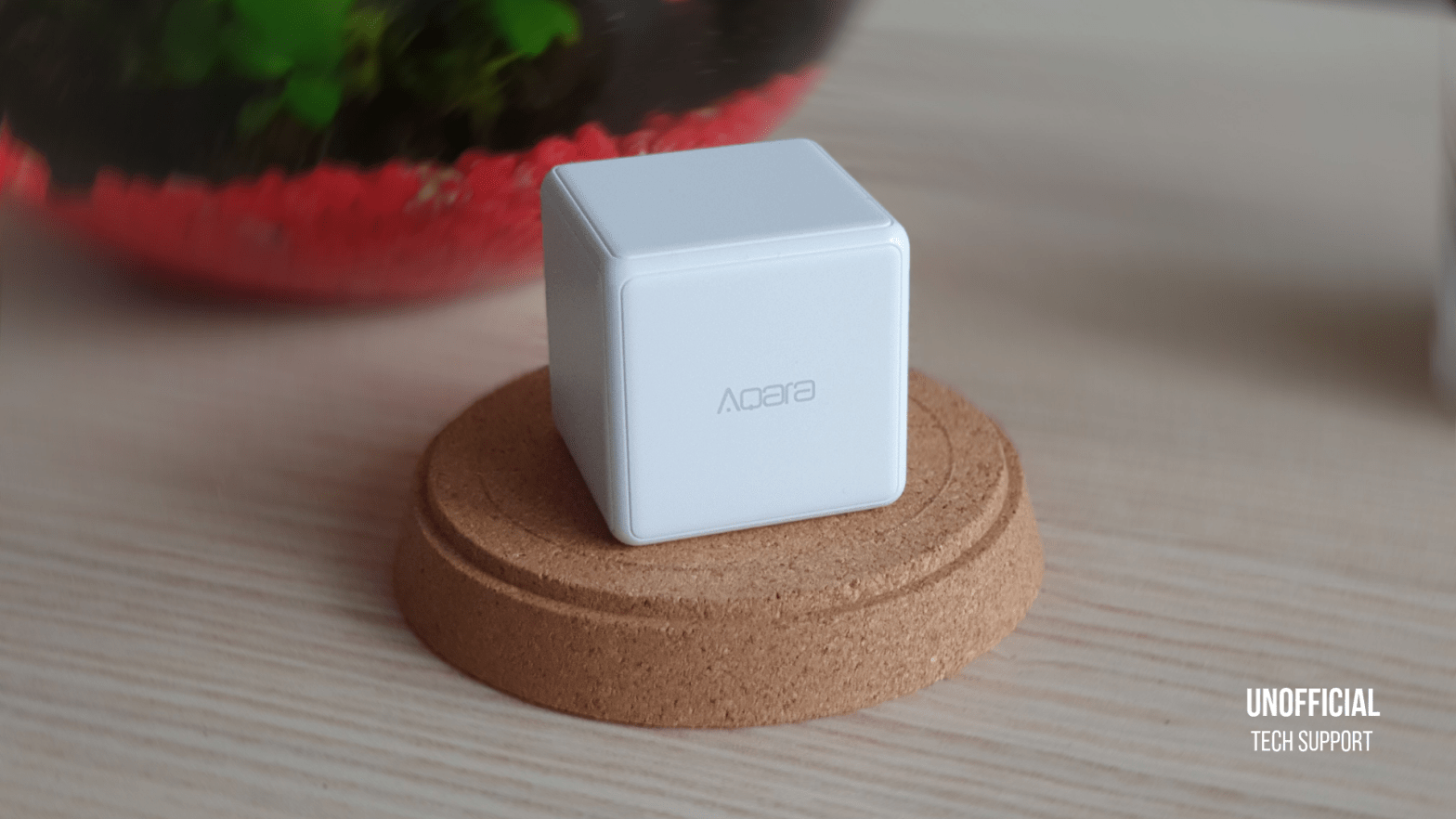
For those of you who might be familiar with the smart home, I’m sure Philips Hue or LIFX spring to mind first. However, there’s a new kid on the block and it’s knocking on our doors down under. While Aqara (a Xiaomi brand) isn’t necessarily an unfamiliar brand in Australia, little is known on the brand’s HUGE (and I mean that in its literal sense) range of smart home devices.
Now, when we talk about smart home controllers, Philips Hue and other more “mainstream” manufacturers typically sell controllers that resemble wall (light) switches; not that dissimilar to the ones you might already have around the house for your lights.
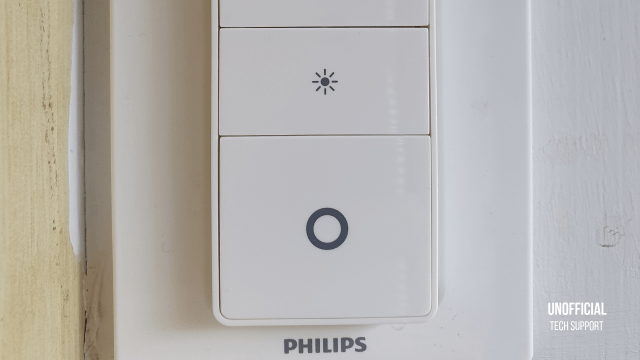
Aqara also sell a range of wall switches, buttons and controllers to assign your smart home gadgets to, but this one is rather quirky and interesting (in a good way).
This controller is unique in that the form factor is a single, standalone cube you can interact with. Sounds like magic right?
SPEC RUNDOWN
| Manufacturer | Aqara |
| Manufacture location | Shenzhen, China |
| Product name | Aqara Cube Controller (魔法控制器) |
| Model number | MFKZQ01LM |
| Release date | September 2018 |
| Compatible platforms (Australia) | Xiaomi Home (with workaround for Apple HomeKit) |
| Colour | White |
| Finish (appearance) | Plastic |
| Form factor | 45mm x 45mm x 45mm |
| Box contents | Cube, manual (Chinese), back plate removal tool |
| Wireless protocol | ZigBee |
| Battery | 1 x CR2450 coin battery (replaceable, included) |
| Operating temperature range | -10 to 50 degrees celsius |
| Price (RRP) | USD$17.15 [as of July 2019] |
OPERATION
Aqara lets users interact with the controller (the cube) in six different and unique ways: pushing, shaking, tapping twice, rotating, turning 90 degrees and flipping 180 degrees.
Users can assign different smart home scenes and actions to each of the interactions with the cube through the Aqara Home app (or Xiaomi Home app; Aqara is probably the easiest). You must also have the Aqara Smart Hub on your network for the device to work.
After playing around with it a little, I find that theses are the best ways to initiate each action:
- Pushing: This one is easy; push the cube along a flat surface (without toppling it).
- Shaking: Pick up the cube and shake it in the air with your fist wrapped around it.
- Tapping twice: Pick up the cube and gently (but firmly) tap it twice on a flat surface.
- Rotating: Spin the cube while on a flat surface (without toppling it).
- Turning 90 degrees: From rest, topple the cube to one side on a flat surface.
- Flipping 180 degrees: From rest, flip the cube 180 degrees on a flat surface.
COMPATIBILITY
Let me start off by saying, while Aqara products are compatible with Apple HomeKit, for whatever reason, the cube is not recognised in the Home App. However, good news is, there is a workaround for those with existing HomeKit gadgets in your home.
To get the device working with HomeKit, you will need the Aqara Home, Eve and Apple Home apps on your iPhone or iPad. The Eve app is used here to edit HomeKit scenes and rules in much greater granularity than the default Apple Home app.
Here’s the step-by-step rundown:
- Make sure your Aqara Smart Hub and cube are paired first.
- Then, in the Aqara Home app, create a new rule and select which cube interaction you want to assign an action to (1 of the 6 interactions from above) under the IF… section.
- Next, under the THEN… section, choose and select to set the brightness level of the night light on your Aqara Smart Hub (doing this won’t actually turn the light on as you’re just adjusting the brightness level with the light off), you can set this to any level of brightness % as you desire; preferably anything greater than 0%.
- Open the Eve app and select which scene or action you want to assign the cube’s interaction to. This can be any scene or range of actions you’ve created in the Apple Home app.
- Still in the Eve app, edit the scene you want to assign to your cube and have it kick off based on the brightness level % of your Aqara Smart Hub. Make sure it’s the same brightness level % as the one you’ve set in the Aqara Home app in Step 3 (this is the link between platforms to make it work with HomeKit).
- Finally, in the same scene we’ve been editing in Step 5 in the Eve app, add a final action in the scene by setting the Aqara Smart Hub’s night light brightness level to 0%.
- Tap save and you’re done! You can use your cube with your existing HomeKit devices!
Step 6 will make sure that a scene or action can continuously be kicked off EVERY time the cube is shook, slid, tapped, etc. Without this last step, performing the same interaction consecutively with the cube will result in nothing happening. A great analogy would be if you wanted to turn a light on and saw that it was on, logically you wouldn’t go to turn it on again when it’s still on.
That’s why ending the scene with setting the Aqara Smart Hub’s night light to 0% will make sure all your actions are carried out regardless – as long as you don’t set the initial brightness to 0% in Step 3 in the Aqara Home app.
VERDICT
If you’re already familiar with the smart home, the cube is a great toy to experiment and trigger scenes with based on your needs at home. This is a very unique and quirky way to go about your smart home needs.
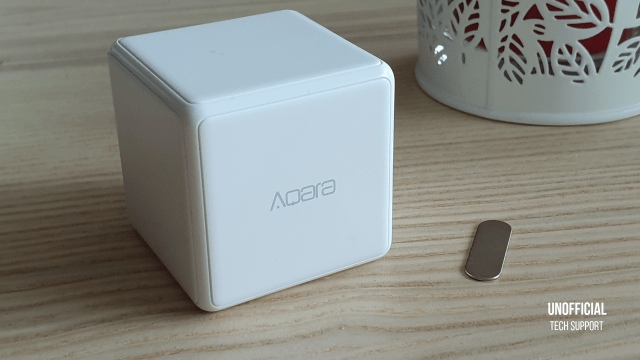
I personally think this is a very aesthetically pleasing device (think Apple-esque) and a responsive one at that once you’ve set it up properly.
The build quality and minimal packaging is top notch, like you would expect from other Aqara smart home products in the range. It feels uniformly weighted in the hand and is surprisingly heavy for a device of its size.
The cube can sit on any table or flat surface and people won’t know it’s a controller unless you’ve told them or they’ve looked into it themselves. It just looks like it could be a cube puzzle or something similar.
This is the perfect smart home device for people looking for something a little more unique and different from “wall switch-like” offerings from manufacturers like Philips Hue.
Yours truly,

 Unofficial Tech Support